
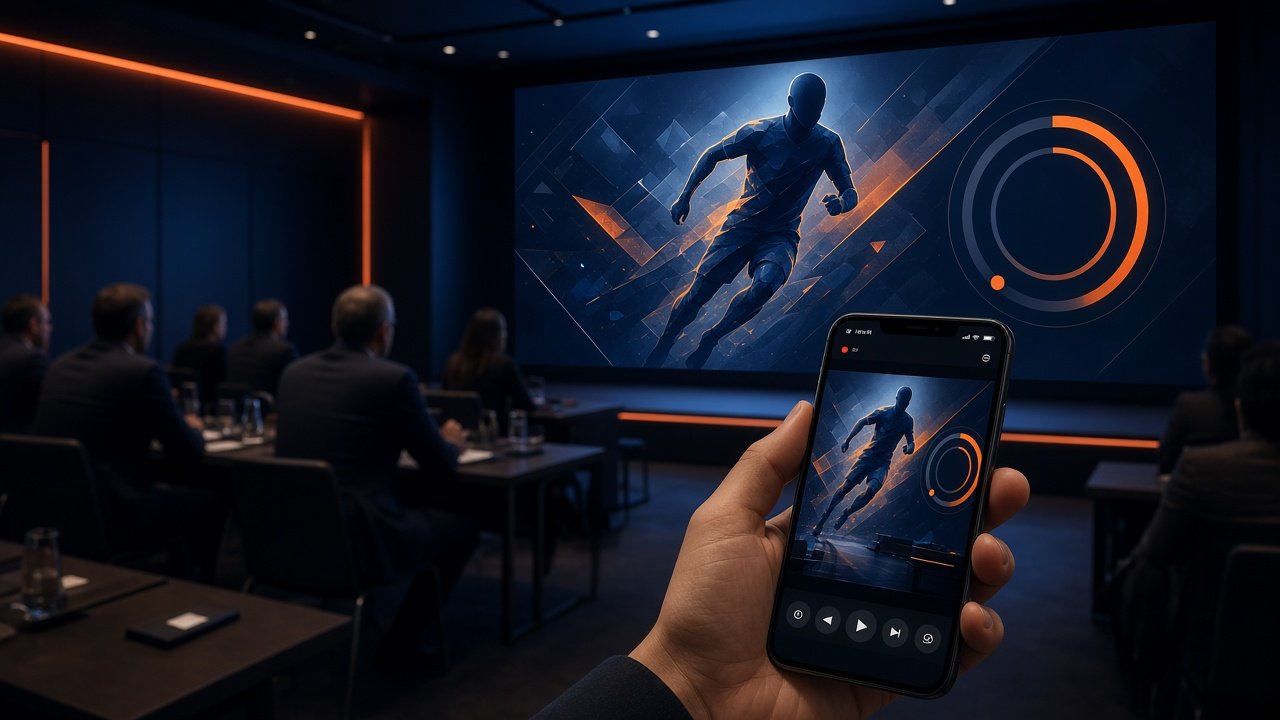
To stream a player auction on YouTube, run the auction in the venue as usual, with team owners bidding there, and give the auction's streaming link to the person running your YouTube stream. Players, fans and sponsors then watch every player card, bid and sale online without being in the room. Rehearse the stream before the day, and plan when you will pause for breaks or disputes.
For the planning steps that come before the stream (registration, categories, teams, purses and rules), start with How to Organize a Sports Player Auction.
When should you stream your auction?
Streaming is worth it when more people want to watch than the venue can hold:
- Registered players want to see which team picks them, but won't all be at the venue.
- Fans, families and supporters of each team want to follow the auction.
- Sponsors want their logos seen by more than the people in the room.
- You want a recording of the auction that the league can share afterwards.
If the auction is small and everyone who cares is in the room, a stream is optional.
How should you set up the venue?
Bidding happens in the venue, so set it up for the people in the room first:
- One big screen that every team table can see, showing the player card, base price, current bid and countdown.
- One operator running the auction console: bringing up the next player, by order or spin-to-select, and running the countdown.
- Each team owner at their table with access to their own team dashboard, showing their purse, remaining budget and squad.
- A host or announcer who calls each player and each sale clearly. Their voice is what the online audience will hear as well.
- A reliable internet connection at the venue, because the auction and the stream both depend on it.
- Sponsor logos loaded, if sponsors expect to be seen on the auction screens.
How do you give the streaming link to a YouTube streamer?
PowerAuction gives organisers a streaming link for the auction. You pass that link to whoever runs your YouTube stream, whether that's a member of your team, a local streaming crew or a sports channel that covers your league, and they bring the auction onto their YouTube stream.
Practical steps:
- Pick your streamer early and agree whose YouTube channel the stream goes out on.
- Send them the streaming link well before auction day, along with the start time and the order of the day.
- Share the YouTube link with players, teams, sponsors and fans in advance, through your WhatsApp groups, social media and registration contacts.
- Agree on audio: who is on the microphone, and whether the streamer adds commentary.
Why should you rehearse first?
A short dry run a day or two before catches most problems:
- Put up three or four test players and run them through a full bid and sale.
- Have the streamer open the streaming link and check that what they receive matches the venue screen.
- Check the host's audio in the venue and on the stream.
- Try the pause button so the operator knows where it is.
- Reset the test data before the real auction.
When should you use the pause button?
The auction screen has a pause button. Plan to use it for:
- Scheduled breaks. Tell the room and the stream when the auction will resume.
- Disputes. If a team questions a bid or a sale, pause, let the neutral person named in your rules decide, announce the decision, then continue.
- Venue problems. A projector, power or microphone issue in the room.
Announce every pause on the microphone so the online audience knows the auction hasn't stopped by accident. Your rulebook should already say who decides disputes; see How to Create Rules for a Sports Player Auction.
What can go wrong, and how do you avoid it?
| Problem | Prevention |
|---|---|
| The streamer gets the link late or can't use it | Send it days ahead; test it in the rehearsal |
| Nobody online knows where to watch | Share the YouTube link with players, teams and fans in advance |
| The online audience can't follow what's happening | A host who announces each player, bid and sale |
| A dispute stalls the room with no explanation | Pause, announce it, decide, announce the decision |
| Venue internet fails | Test the venue connection beforehand and have a backup ready |
| Sponsors aren't visible | Load sponsor logos before the day and check them in the rehearsal |
How does PowerAuction help?
PowerAuction runs the auction in the venue and gives you a streaming link for the online audience. The operator console shows the player card, base price, current bid and countdown, with spin-to-select for choosing the next player and a pause button for breaks and disputes. Each team owner bids from a private real-time dashboard that shows their purse, spent and remaining budget and squad, and confirms each bid before it is sent. Sponsor logos can appear on the auction screens. After the auction, organisers get analytics on registrations, average and highest prices and team spend.
Frequently asked questions
Can I stream a player auction on YouTube?
Yes. Run the auction in the venue and give PowerAuction's streaming link to the person running your YouTube stream, so players and fans can watch online.
Can team owners bid from the stream?
No. Team owners bid in the venue from their own team dashboards. The stream is for people watching.
Do I need my own YouTube channel?
Not necessarily. You can give the streaming link to any YouTube streamer you work with, such as a local crew or a sports channel that covers your league.
What should I do if there is a dispute during the auction?
Pause the auction with the pause button, announce it, let the neutral person in your rules decide, announce the decision, and continue.
Should I rehearse the stream?
Yes. Run a few test players with the streamer a day or two before, check the audio, and reset the test data before the real auction.
Plan your streamed auction with PowerAuction
Email powerauction@inraylabs.com with your league, number of teams and auction date, and we'll walk you through the setup and the streaming link.